8🏷️
Printing barcode labels
When products carry a barcode, you just scan at the time of sale and the product appears in the list — no searching by name, and no mistakes.
When you pick a product, the quantity box is filled with the stock count automatically — one sticker per item. Change it if you want.
📍 Where to find it: Left menu: Stock → Barcode Labels. There is also a “Print labels” link at the top of the sales page.
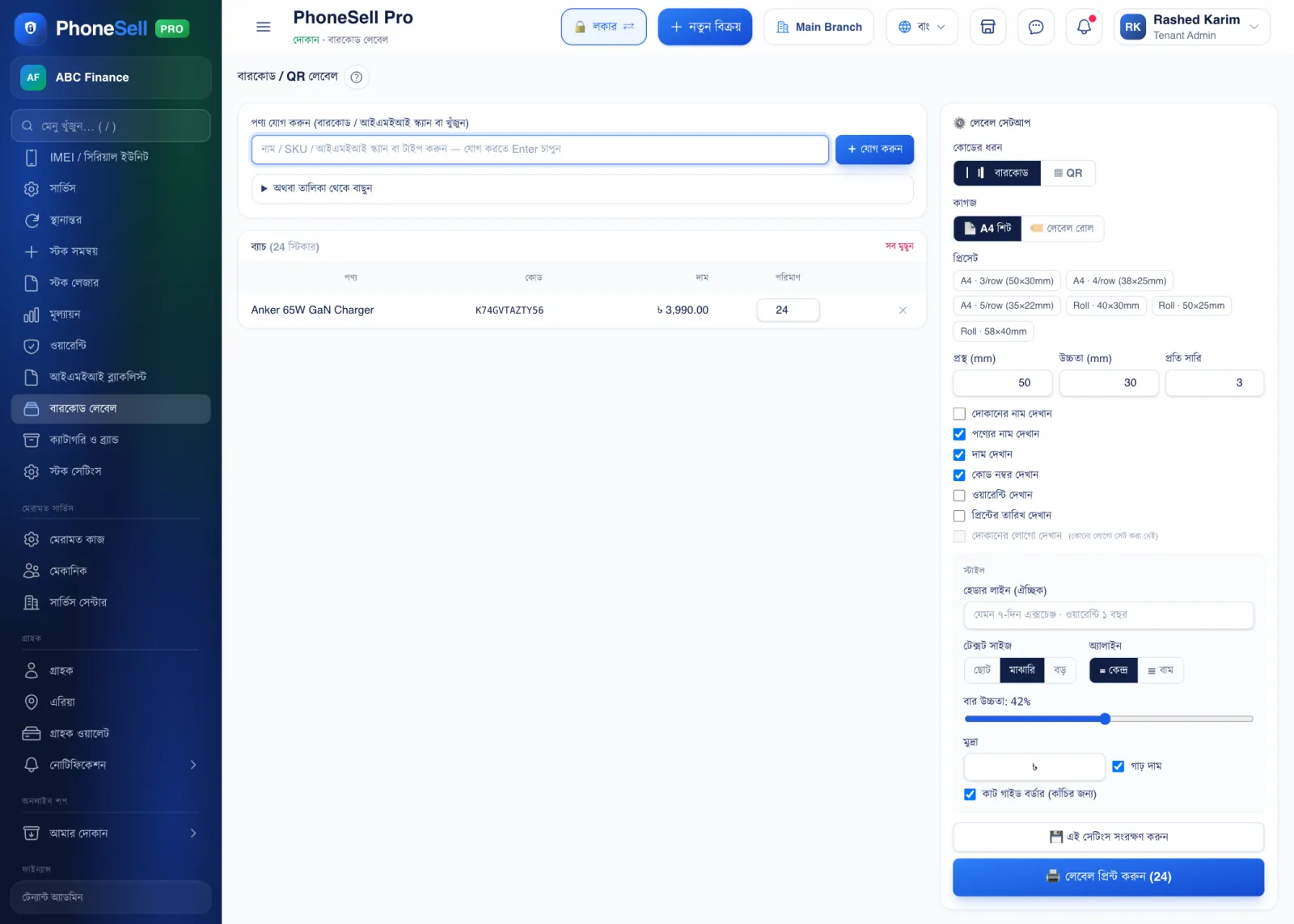
📷 Screenshots show the panel in Bangla — switch the panel to English and the same buttons appear in English.
 12345678
🔍 Tap the picture to enlarge
- 1Add product. Type the name, SKU or IMEI and press Enter.
- 2Or pick from list. Opens a list of all products — tap to add.
- 3Quantity. How many stickers you need. The stock count is filled in automatically.
- 4Code type. A normal barcode, or a QR code that can be scanned with a mobile phone.
- 5Paper. A4 sticker sheet for a normal printer, or a roll for a label printer.
- 6Preset. Pick your sticker size; if none matches, enter the width and height yourself below. Tick whether to show the shop name, price and warranty.
- 7Save these settings. Next time the same size and options come up automatically.
- 8Print labels. The print page opens — keep “Scale 100%” in the printer settings and print.
💡 Good to know
- The first time, print one page on plain paper and hold it against the sticker sheet to check it lines up, then print on the real sheet.