6🚚
Buying goods — adding products to stock
When goods arrive from a supplier, record them here. As soon as you save, the goods go into stock, the amount you owe the supplier goes up, and whatever you paid is taken out of cash/bank.
For phones, scan the IMEI of every set — later you'll be able to find which set was sold to whom and when its warranty ends.
📍 Where to find it: Left menu: Purchase → Purchases → New Purchase.
📷 Screenshots show the panel in Bangla — switch the panel to English and the same buttons appear in English.
Step by step
- Choose the Supplier (if new, use “+ New” beside it).
- Enter the supplier's invoice (challan) number and date.
- Add products to the list by typing the name or scanning the barcode.
- For phones, scan the IMEI of every set — the quantity is counted automatically.
- On the right, enter how much you paid and from which account, then tap Save purchase.
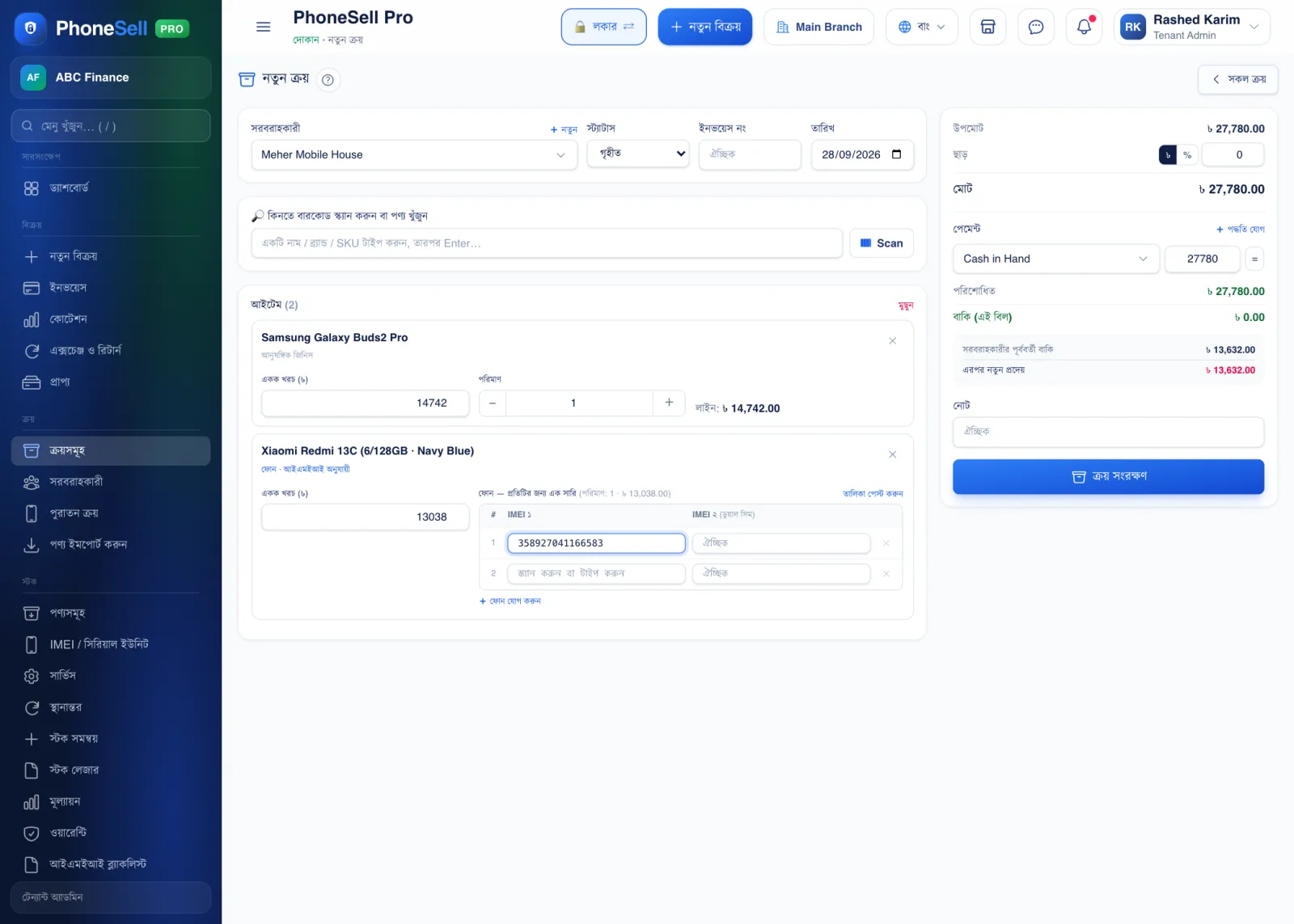 12345678
🔍 Tap the picture to enlarge
- 1Supplier. Who you bought from. If you bought for cash over the counter, leave it blank (walk-in).
- 2Invoice no. and date. The supplier's invoice (challan) number — makes it easier to match up later.
- 3Search or scan a product. Type a name and pick from the list, or scan with a barcode scanner.
- 4Unit Cost. What you paid per piece. For accessories, enter the quantity beside it.
- 5IMEI. One line per phone set. Scan and press Enter to move to the next line; for dual-SIM phones you can also enter IMEI 2.
- 6Payment. How much you paid now and from which account (cash/bank/bKash). If you paid from more than one account, tap “Add method”.
- 7Due (this bill). If you didn't pay in full, the rest is added to the supplier's account.
- 8Save purchase. Tap it and the goods go into stock.
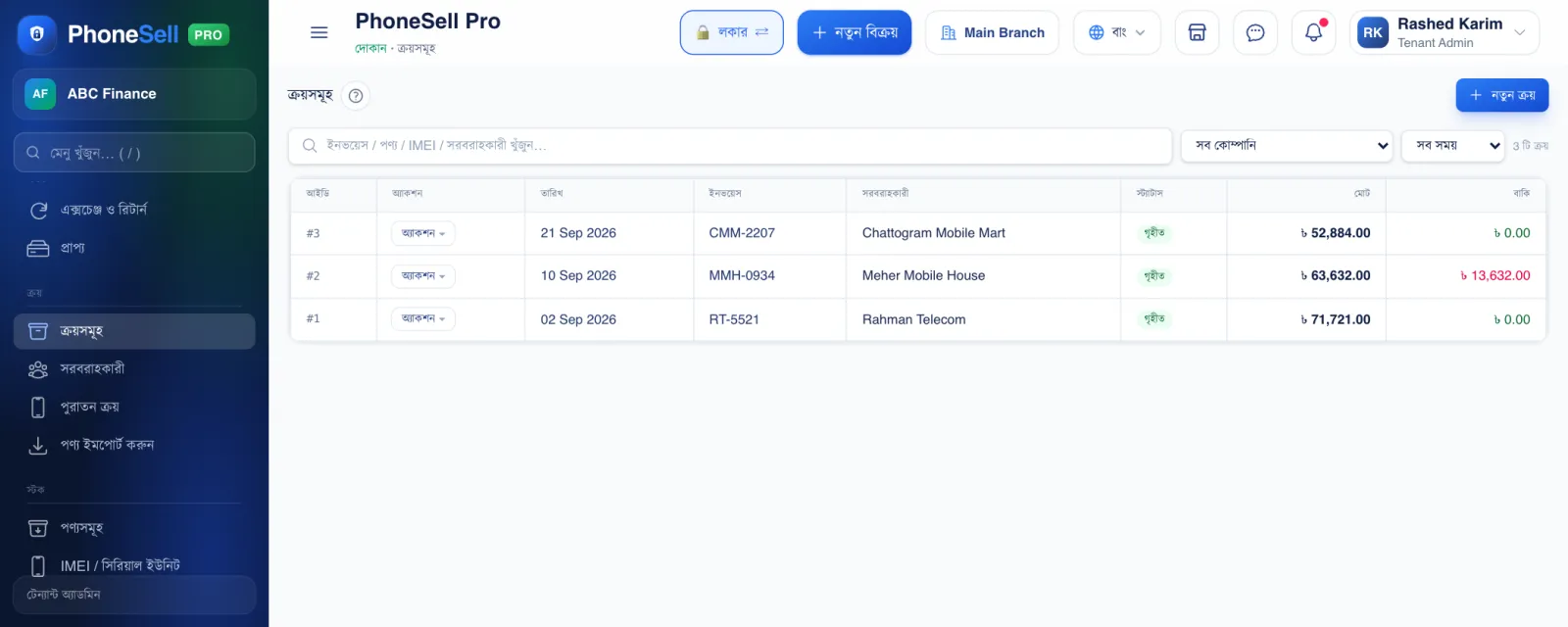 1234
1234🔍 Tap the picture to enlarge
- 1New Purchase. Opens the form above.
- 2Filter. See purchases from a particular supplier or period (today, this month…).
- 3Action. Print the voucher, return goods to the supplier, or delete it if it was a mistake.
- 4Due. How much of this purchase hasn't been paid yet.
💡 Good to know
- Deleting a purchase entry takes the goods back out of stock and reverses the money side too — so if you make a mistake, just delete it and enter it again.
- If you order goods first and they arrive later, set “Status” to Ordered; when the goods arrive, mark it Received.