3📦
Adding products — phones and accessories
Anything you sell must first be in the product list. For phones, add the model once (for example Galaxy A55 5G 8/128GB) — the IMEI of each handset is entered separately later, when you buy it.
Accessories like chargers, covers and earbuds have no IMEI — only the number of pieces is counted.
📍 Where to find it: Left menu: Stock → Products.
📷 Screenshots show the panel in Bangla — switch the panel to English and the same buttons appear in English.
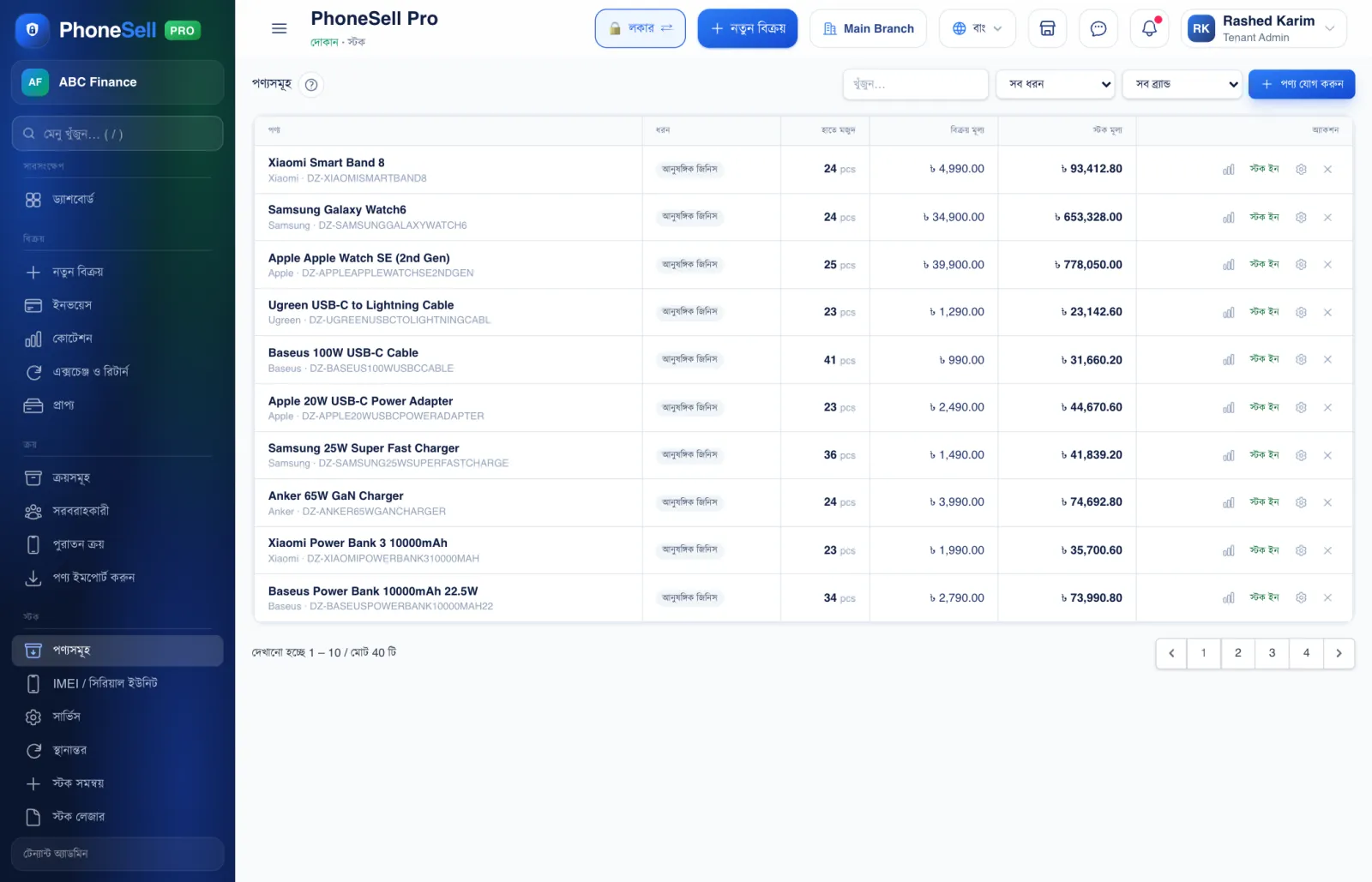 12345
12345🔍 Tap the picture to enlarge
- 1Filter. Show only phones, only accessories, or a particular brand. You can also type a name in the box next to it to search.
- 2Add product. Add a new model or accessory to the list (picture below).
- 3On hand. How many are in the shop right now.
- 4Stock Value. The total purchase price of all the stock of this product.
- 5Stock In. If you add goods by hand without a supplier, increase the count from here.
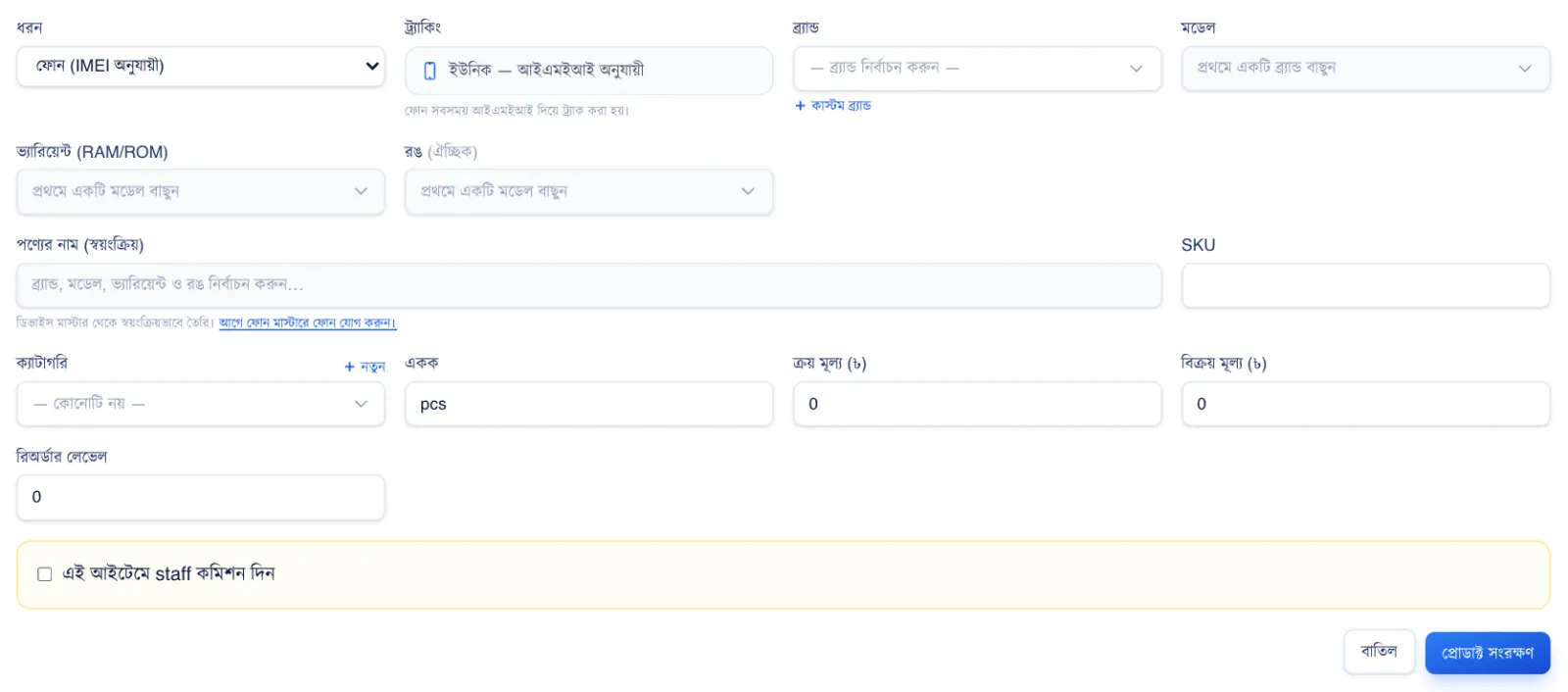 12345678
🔍 Tap the picture to enlarge
- 1Type. For a phone choose “Phone (by IMEI)” — each set can then be identified by its own IMEI. For accessories choose “Accessory”.
- 2Brand and model. Pick from the list — almost every model on the market is already there. If you can't find it, tap “Custom brand”.
- 3Variant and colour. For example 8/128GB, blue. Different variants of the same model have different prices, so keep them as separate products.
- 4Product name. Filled in automatically once you pick the brand, model and variant.
- 5Purchase price. What you pay for it. Profit is calculated from this.
- 6Sale price. What you normally sell it for. You can change it at the time of sale if you want.
- 7Reorder Level. When stock falls below this, a “low stock” warning is shown.
- 8Save product. Tap this once everything is filled in.
💡 Good to know
- To add many products at once, use Purchase → Import Products and upload an Excel file.
- A newly added product has zero stock. Goods come in through Purchase — see the next chapters.