1🚪
Getting started — entering the shop section
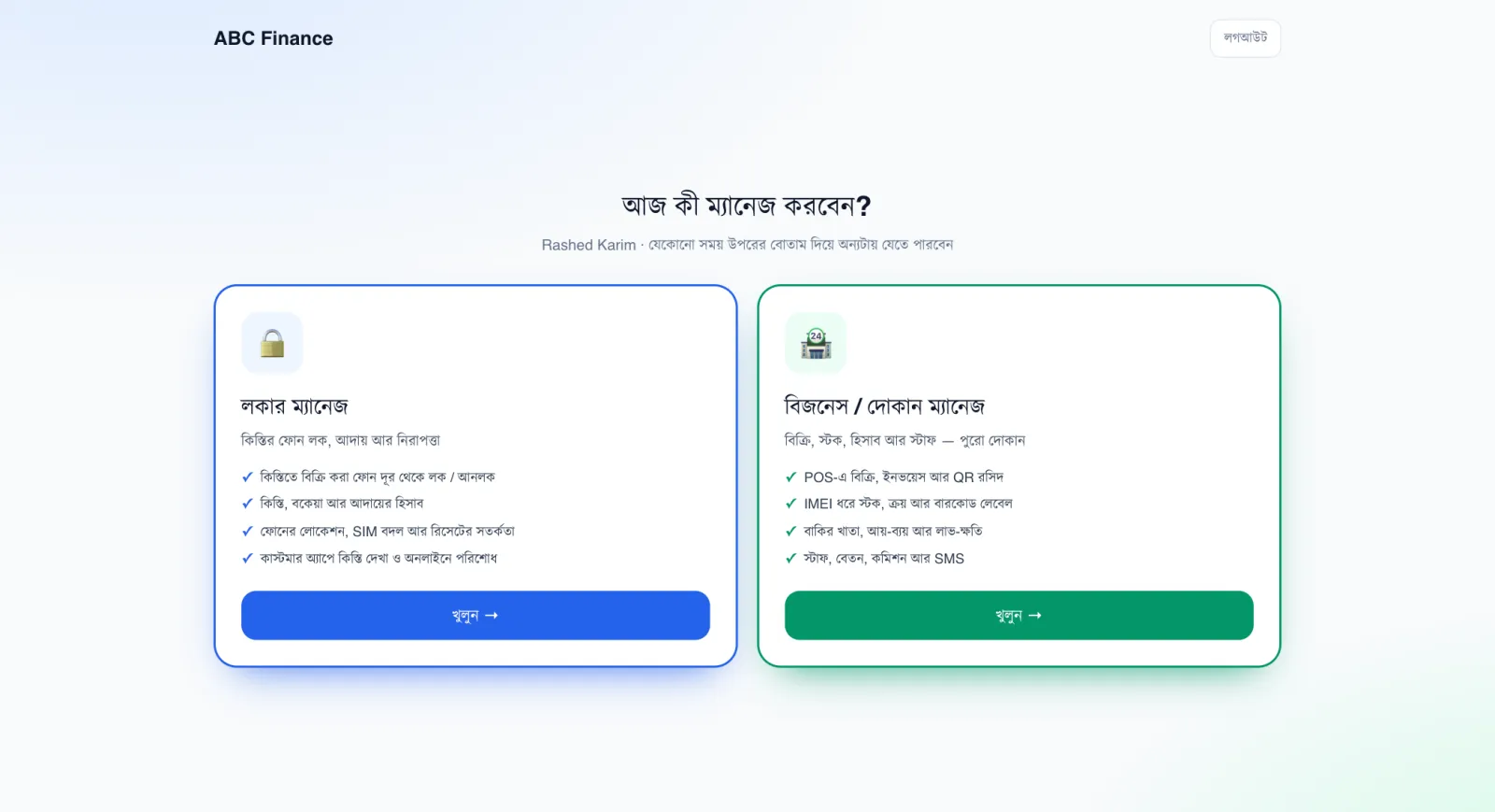
After you log in, a page appears with two large cards. All your shop work — sales, stock, purchases and accounts — is in the green card on the right: “Business / Dokan Manage”.
This guide walks through every task in the shop section, one by one. Locking and unlocking phones sold on instalments is covered separately in the Locker guide.
📷 Screenshots show the panel in Bangla — switch the panel to English and the same buttons appear in English.
Step by step
- Open phonesellpro.com in your browser and tap Login.
- Enter your email or username and your password.
- On the entrance page, tap Business / Dokan Manage → Open.
 12
12🔍 Tap the picture to enlarge
- 1Business / Dokan Manage — Open. Everything for sales, stock, purchases, dues and accounts is here.
- 2Locker Manage. Locking/unlocking phones given on instalments and collecting instalments. You can run it alongside the shop.
💡 Good to know
- Once inside, you can tap the “Locker ⇄” button at the top at any time to switch to the Locker section — no need to log in again.
- You can also log in at the same address from your mobile and do everything there.