15💸
Quick income and expenses
Record every expense of the day here, big or small — then at the end of the month you'll see your real profit accurately.
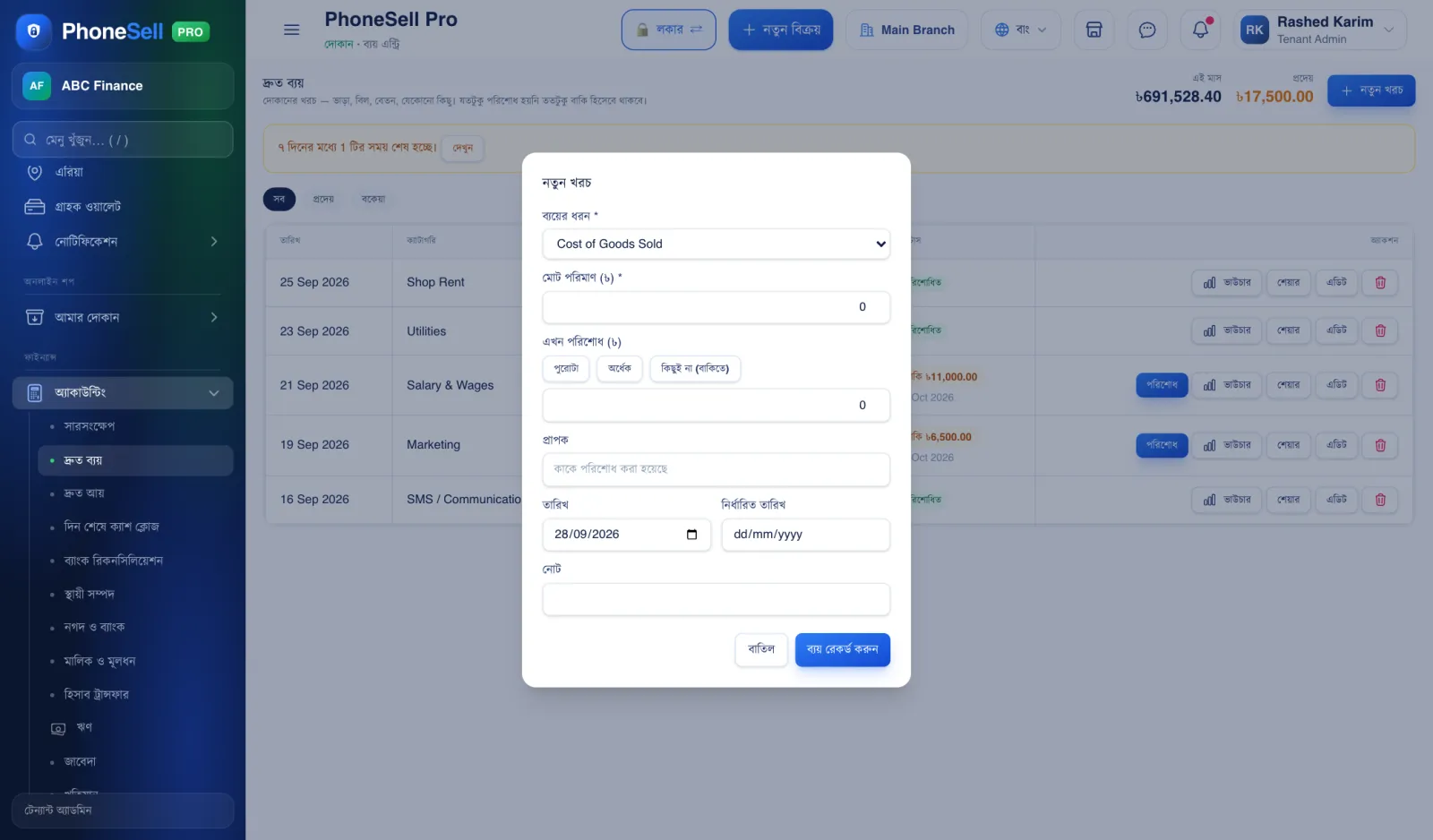
You can leave an expense unpaid — for example, the bill has arrived but you'll pay later. Choose “Nothing (on credit)” and set a due date; you'll get a reminder when it's time.
📍 Where to find it: The Quick Income / Quick Expense buttons on the dashboard, or menu: Sales → Quick Income / Quick Expense.
📷 Screenshots show the panel in Bangla — switch the panel to English and the same buttons appear in English.
 123456
🔍 Tap the picture to enlarge
- 1Expense category. Rent, salary, electricity, marketing and so on. Reports use this to show how much was spent on what.
- 2Total amount. The full amount of the expense.
- 3Pay now. “Full”, “Half” or “Nothing (on credit)” — set in one tap. Also pick which account you paid from.
- 4Payee. Who you paid — for example the landlord or the electricity office.
- 5Due date. If it's unpaid, when you'll pay.
- 6Record expense. From the list you can later print a voucher, share, edit or delete it.
💡 Good to know
- Recording income works the same way — on the Quick Income page tap “New income”. For example: phone servicing charges, or rent for the space in front of the shop.