17👥
Staff, commission and salary
Every staff member has a Wallet. Sales commission is added to it, advances are taken off it, and salary is added at the end of the month — so it's always clear how much you owe whom.
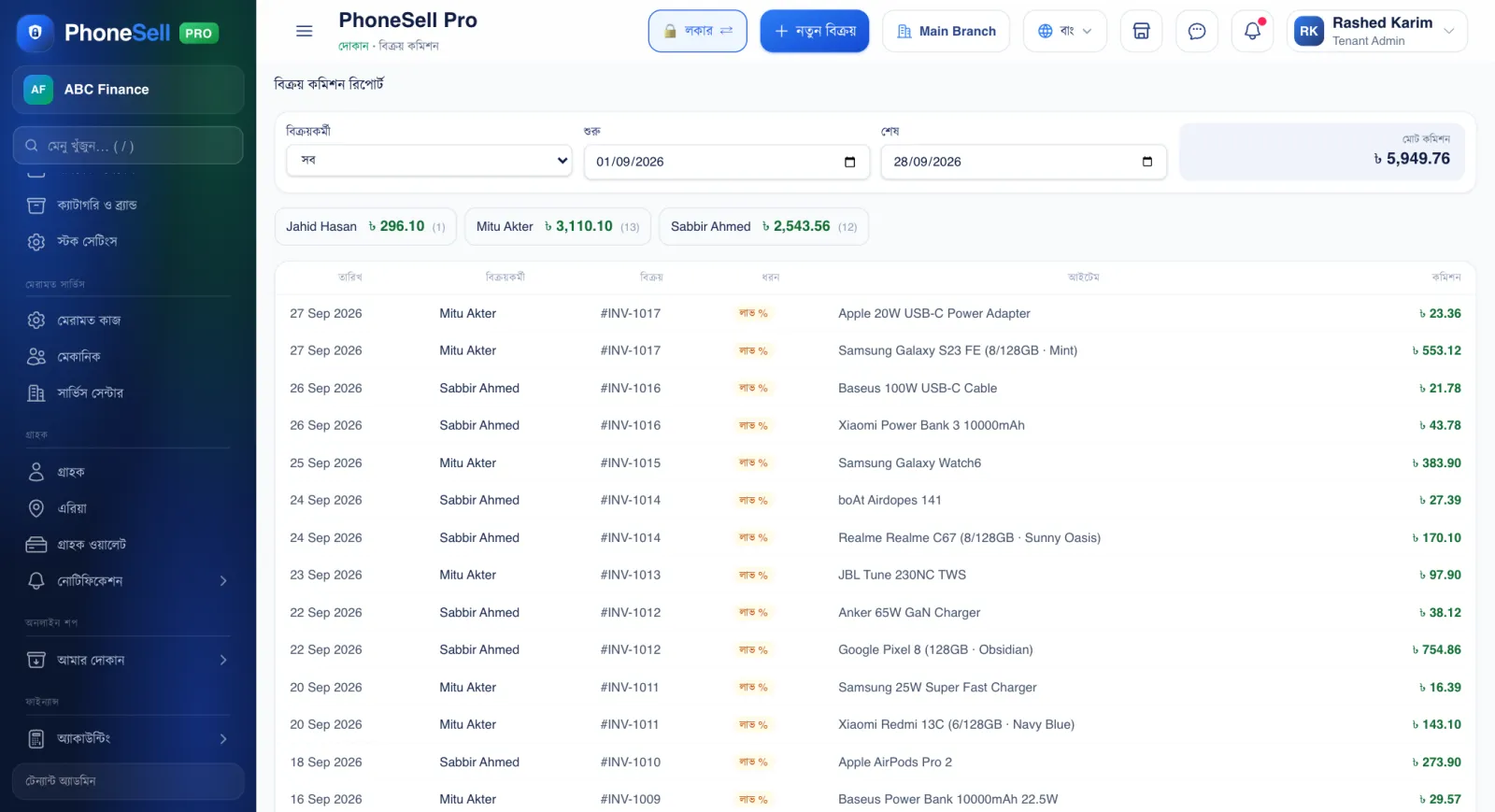
Just choose the “Salesperson” at the time of sale and the commission is calculated automatically. If you want, staff can also get an SMS about their commission after a sale.
📍 Where to find it: Left menu: the Staff section — Staff, Attendance, Wallet & Advance, Sales Commission, Salary.
📷 Screenshots show the panel in Bangla — switch the panel to English and the same buttons appear in English.
 1234
1234🔍 Tap the picture to enlarge
- 1Salesperson and date. Whose commission, and for which period.
- 2Total Commission. Below it, a separate total for each person and how many sales.
- 3Sale. Which memo the commission came from.
- 4Commission. A % of profit or a fixed amount per product — however you've set it.
 12345
12345🔍 Tap the picture to enlarge
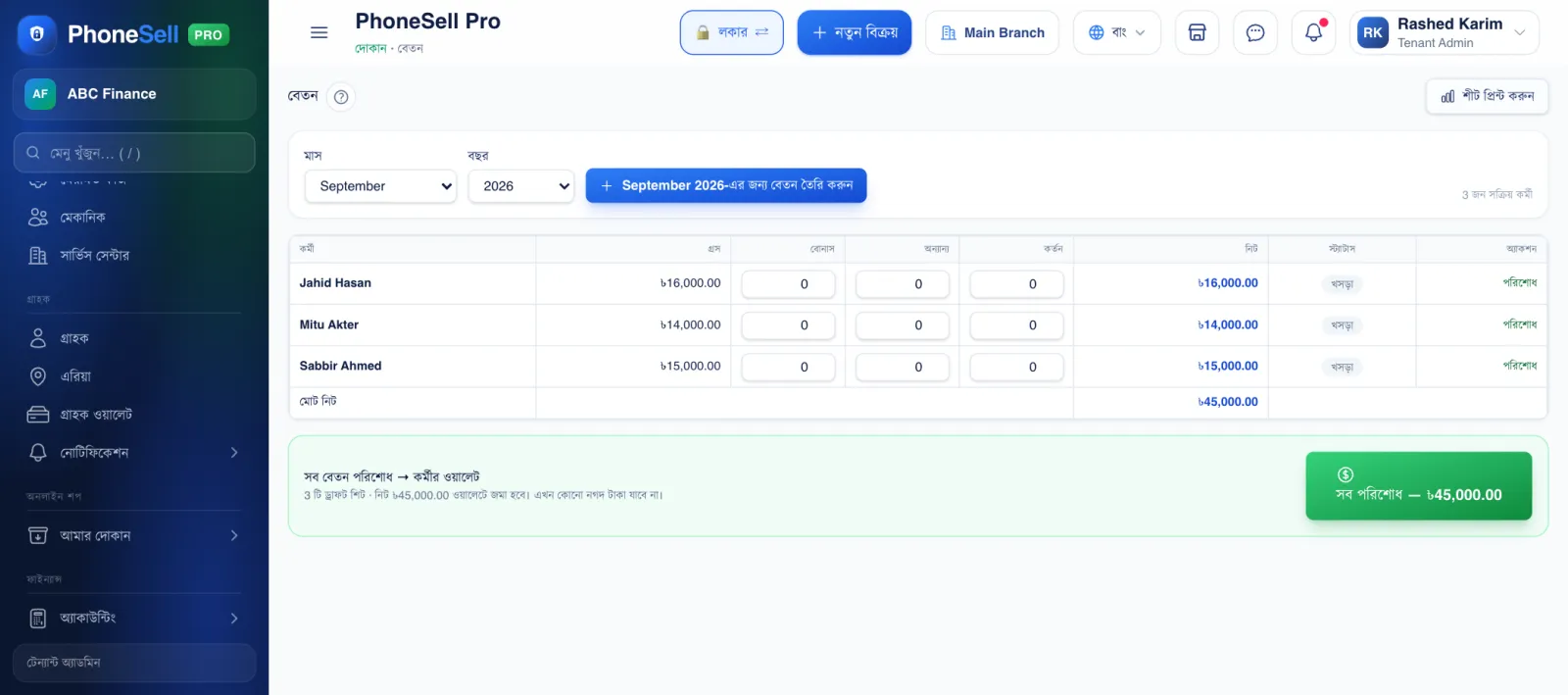
- 1Month and year. Which month's salary.
- 2Generate salaries. A draft sheet for all active staff in one tap.
- 3Bonus, other, deduction. Enter any extra or deduction for anyone.
- 4All clear. Salaries are credited to everyone's wallet; then when you pay out cash, pay it from the wallet.
- 5Print sheet. For collecting signatures.
💡 Good to know
- Turn on commission and set the rate from Stock Settings; if you want a different commission on a product, tick “Give staff commission on this item” in the product form.
- To give a staff member a panel login, turn on “Panel” in the Staff list — set what they are allowed to do from “Team & Roles”.