1🚪
Getting started — login and the entrance page
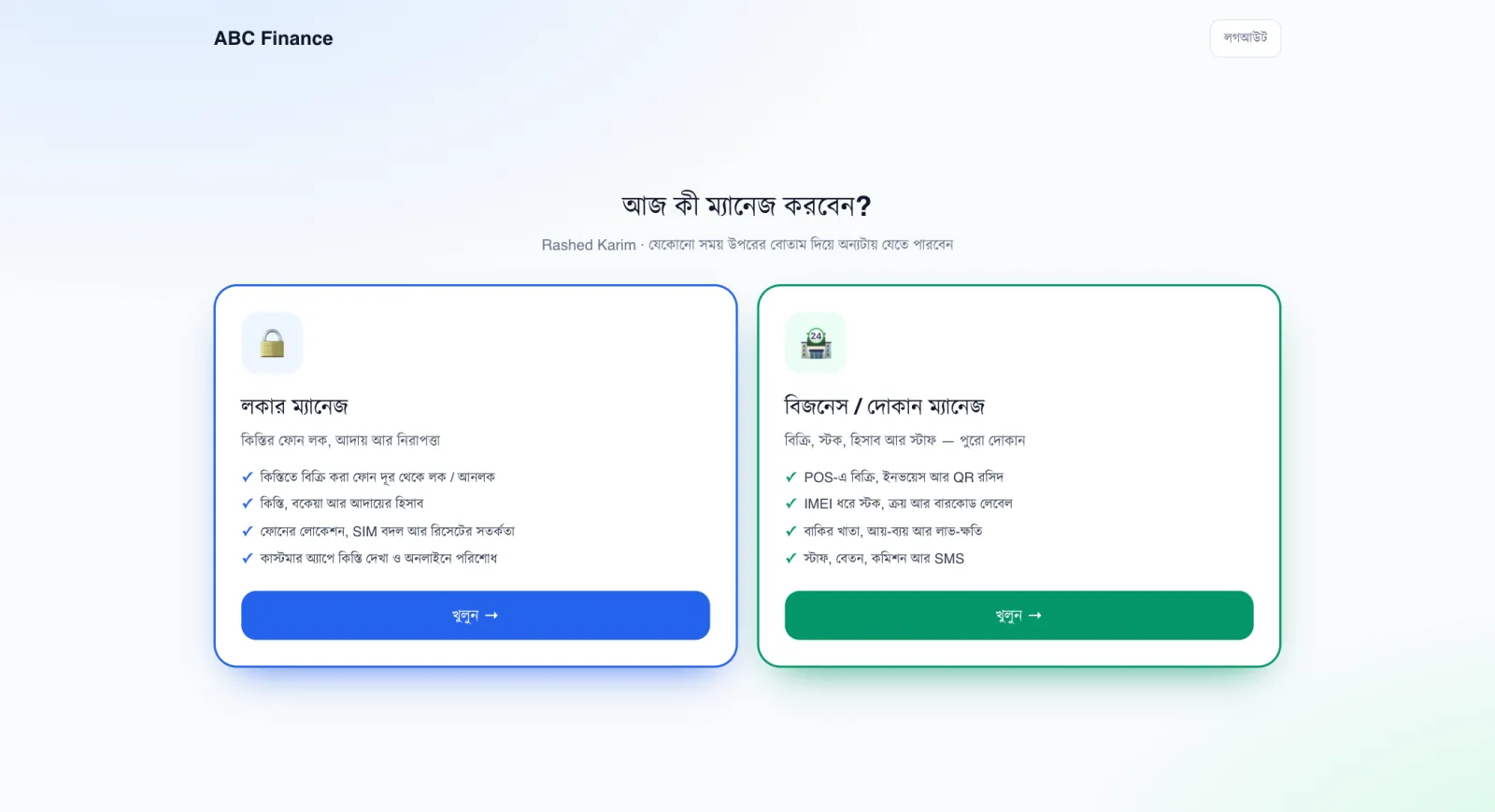
After you log in, the first page shows two big cards. Pick here what you want to work on today.
For installment phones, locking and collecting installments, use the blue card on the left. For sales, stock and accounts, use the green card on the right. This guide covers everything in the blue card — the Locker.
📷 Screenshots show the panel in Bangla — switch the panel to English and the same buttons appear in English.
Step by step
- Open phonesellpro.com in your browser and tap Login.
- Enter your email or username and your password.
- On the entrance page, tap Locker Manage → Open.
 12
12🔍 Tap the picture to enlarge
- 1Locker Manage — Open. Everything for installment phones: viewing phones, lock/unlock and collecting installments.
- 2Business / Shop Manage — Open. Sales, stock and accounts. If this part is not active on your account, the card will say “See what you get”.
💡 Good to know
- Once inside, you can tap the colored “Shop ⇄” button at the top to switch to the other part at any time — no need to log in again.
- Forgot your password? Tap the “Forgot?” link on the login page.