4➕
Add a new installment phone (5 steps)
When you sell a new phone on installments, add it to the Locker in five short steps. Each step saves itself — if you stop halfway, you can pick up later exactly where you left off.
📍 Where to find it: Left menu: Locker → Add Device.
📷 Screenshots show the panel in Bangla — switch the panel to English and the same buttons appear in English.
Step by step
- New Customer — the customer's name, mobile number, NID and address.
- Phone brand & model — pick from the list.
- IMEI numbers — dial *#06# on the phone to see them.
- Financing & installments — price, down payment, profit and number of installments.
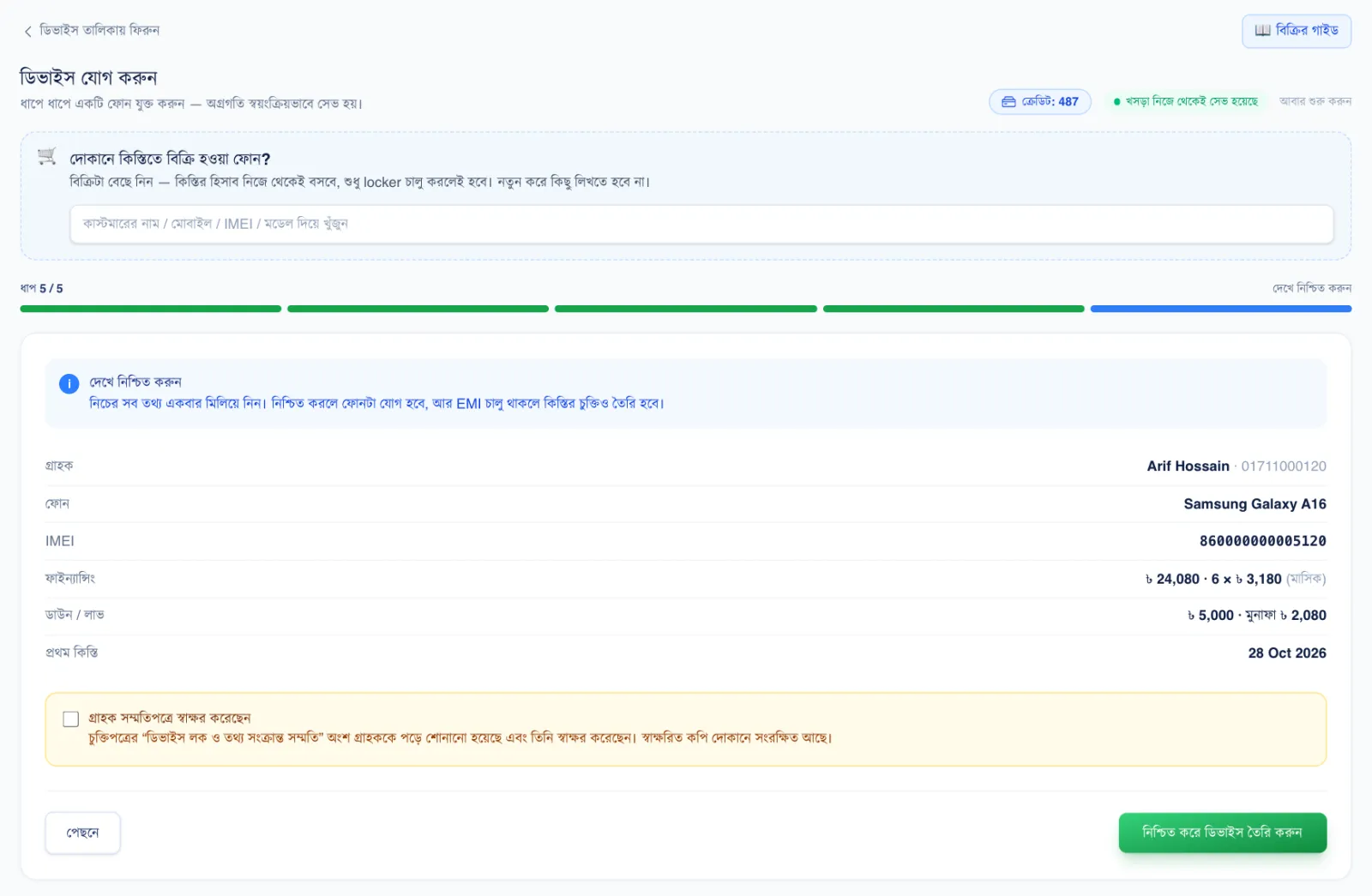
- Review & confirm — if everything is correct, the phone is created.
 123
123🔍 Tap the picture to enlarge
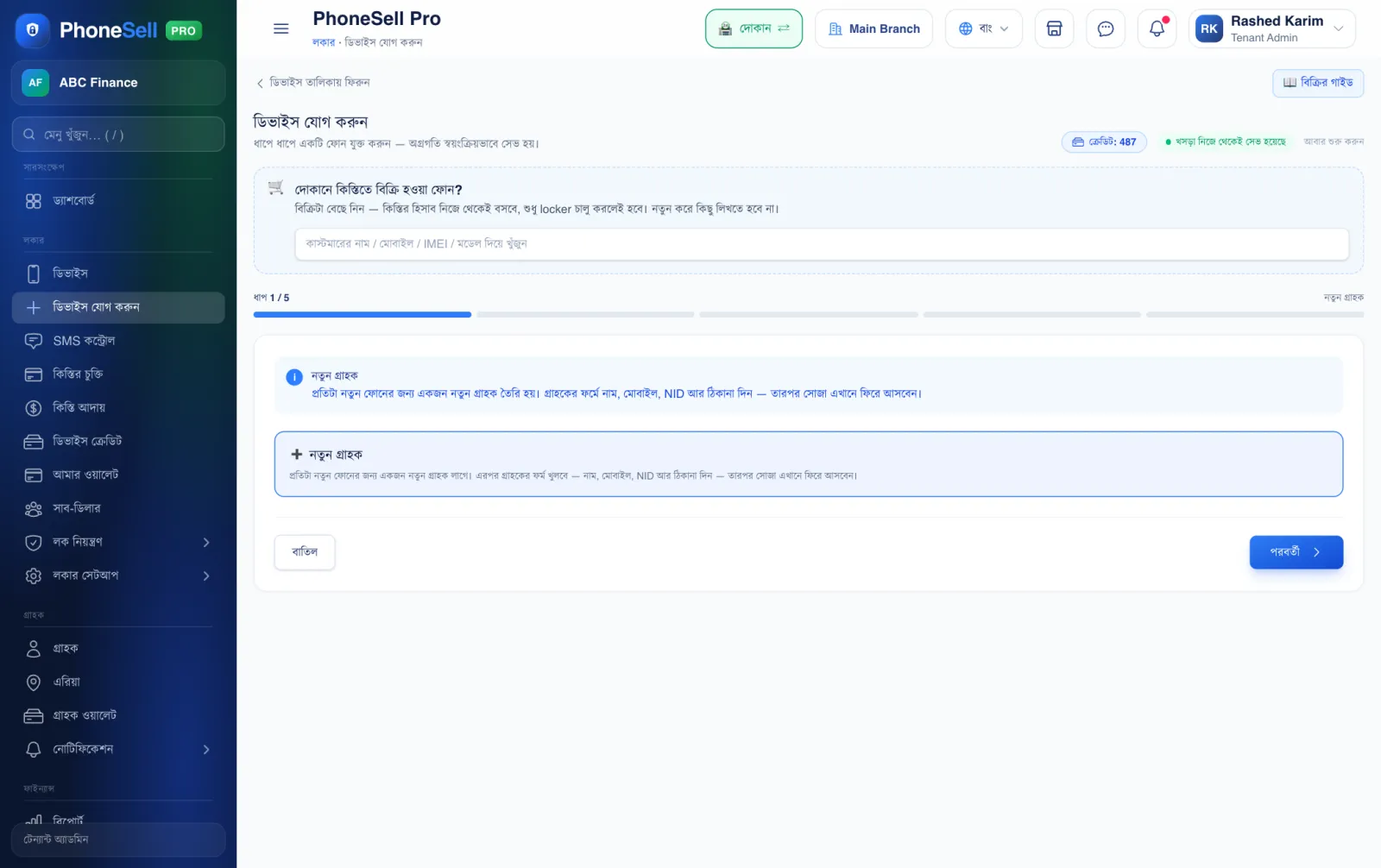
- 1Already sold in the shop? Pick the phone from the shop's sales list and the customer and installment details fill in by themselves.
- 2New Customer. Tap to open the customer form — enter name, mobile, NID and address, save, and you come straight back here.
- 3Next. Once the customer is selected, tap this to go to the next step.
 12
12🔍 Tap the picture to enlarge
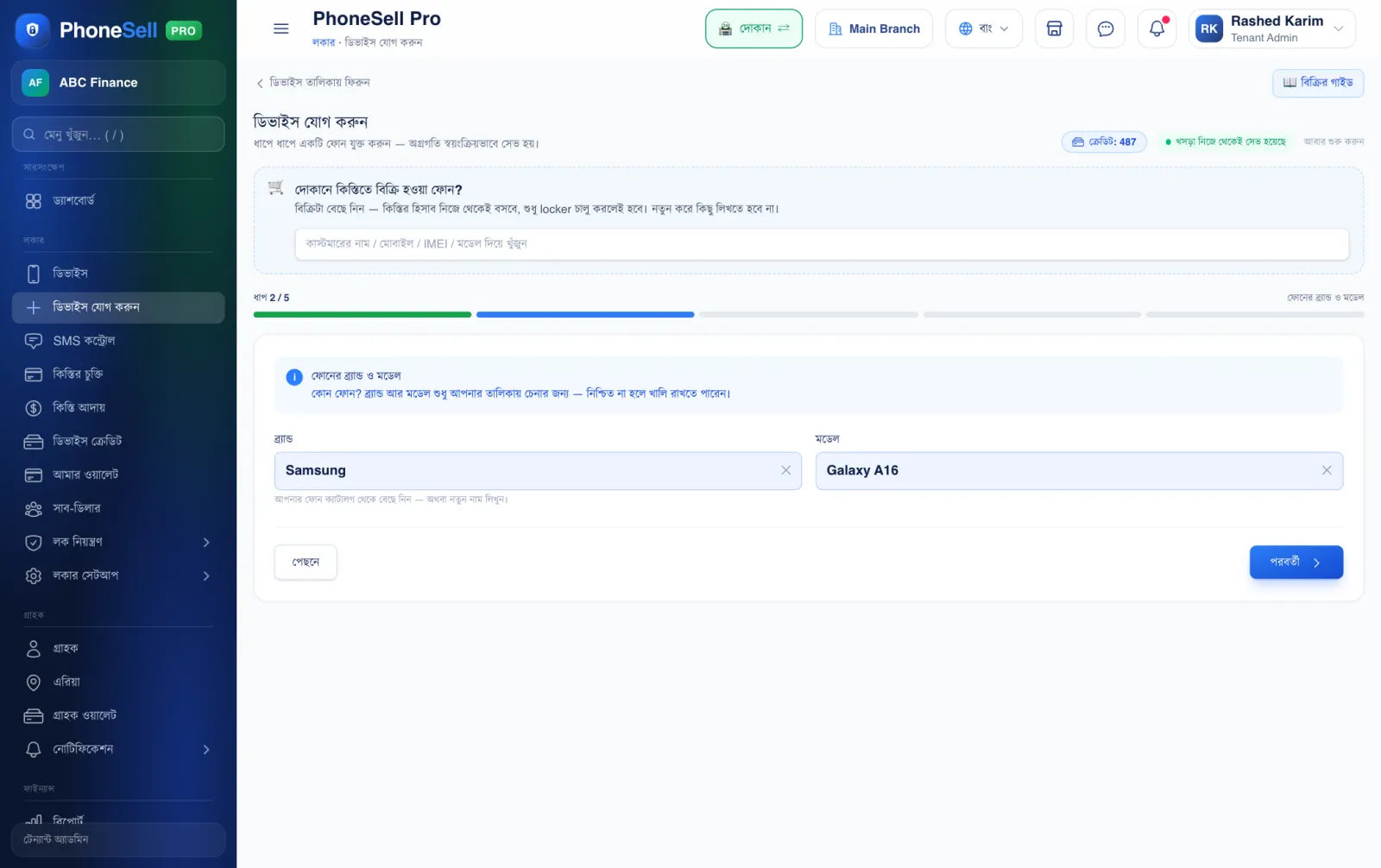
- 1Brand. Samsung, Xiaomi, Vivo… — start typing and the list appears.
- 2Model. After you pick the brand, that brand's models appear. If you're not sure, you can leave it blank.
 12
12🔍 Tap the picture to enlarge
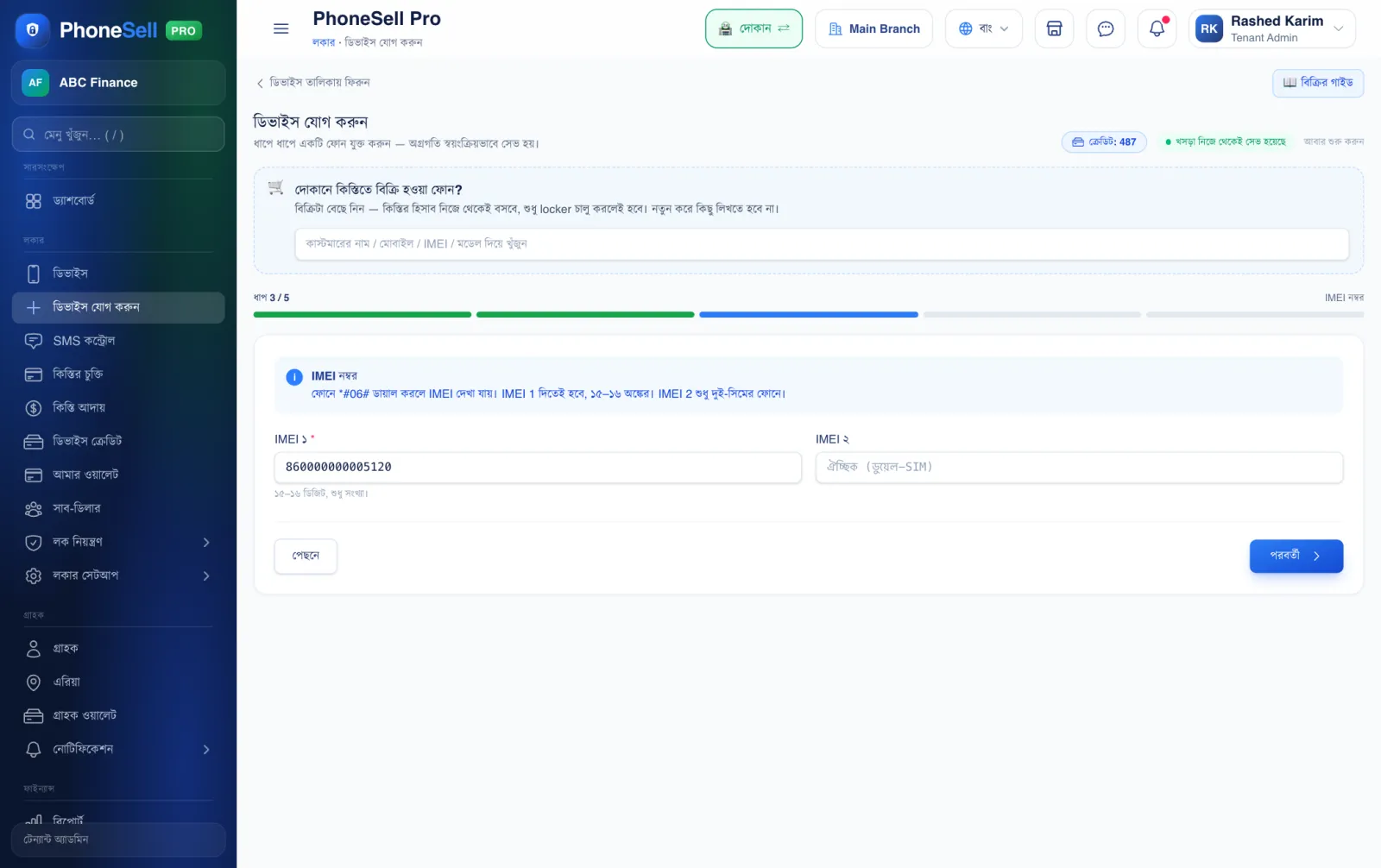
- 1IMEI 1 — required. Dial *#06# on the phone to see it. It's a 15 or 16 digit number.
- 2IMEI 2. The second IMEI on dual-SIM phones. Leave it blank on single-SIM phones.
 123456
🔍 Tap the picture to enlarge
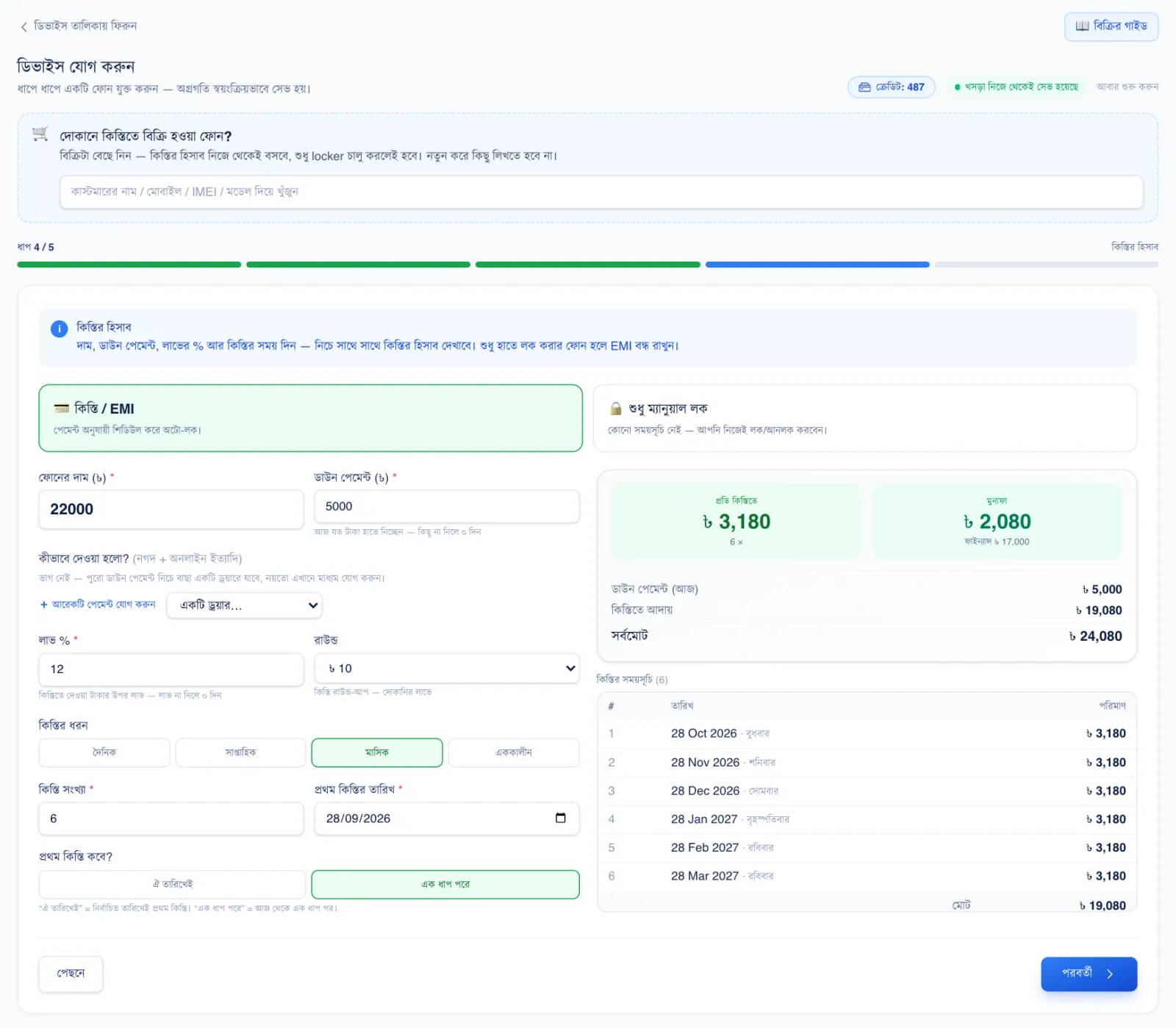
- 1Installment / EMI on. When on, the phone can lock by itself once an installment date passes. If you only want to lock by hand, choose “Manual lock only”.
- 2Phone price. The price you're selling the phone to the customer for.
- 3Down payment. How much cash you took today. Also pick which account (cash/bKash) it went into.
- 4Profit %. The percentage of profit added on the remaining balance.
- 5Number and type of installments. How many installments, and monthly/weekly/daily.
- 6Installment schedule. As soon as you change the details above, the date and amount of every installment show here.
 1
1🔍 Tap the picture to enlarge
- 1Confirm & create device. Check all the details, then tap. The phone is added, and if EMI is on, the installment contract is created too. Next, enroll the phone (next chapter).
💡 Good to know
- Each new phone you add to the Locker uses 1 device credit. Your remaining credits show at the top right.
- The “Draft auto-saved” note at the top means nothing is lost even if you leave halfway.
⚠️ Careful
- If the IMEI is wrong, the phone can't be identified. Dial *#06# on the phone and match it.