7🔒
Lock and unlock a phone
If the customer doesn't pay, lock the phone — while locked, the customer can only use the phone to call you and pay the installment. Once you get the money, unlock it again with one tap.
📍 Where to find it: The Command Center section on the phone's page, or the Restrict / Restore buttons in the Devices list.
📷 Screenshots show the panel in Bangla — switch the panel to English and the same buttons appear in English.
Step by step
- Open the phone's page.
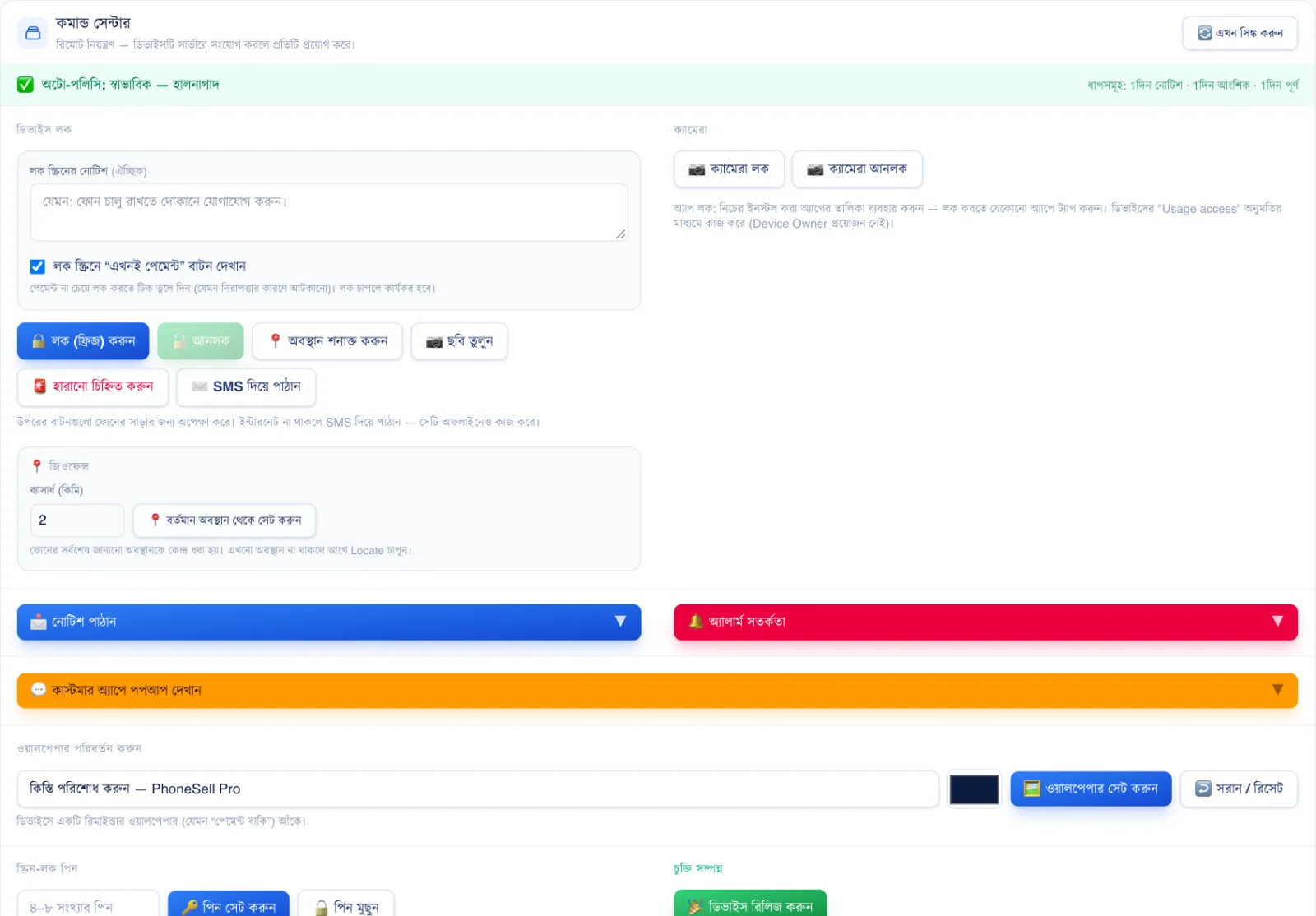
- In the Command Center, you can write a notice to show on the lock screen (for example: “Installment due — please contact the shop”).
- Tap Lock (freeze). If the phone is online, it locks immediately.
- When you get the money, tap Unlock in the same place.
 123456
🔍 Tap the picture to enlarge
- 1Lock screen notice. Whatever you write here is shown on the locked phone's screen.
- 2“Pay now” button. When on, the customer can pay the installment online right from the lock screen and unlock the phone.
- 3Lock (freeze). Locks the phone.
- 4Unlock. Removes the lock.
- 5Locate. Asks the phone to send its location right now.
- 6Send by SMS. If the phone has no internet, send the lock/unlock by SMS — it works as long as the SIM is active.
 12
12🔍 Tap the picture to enlarge
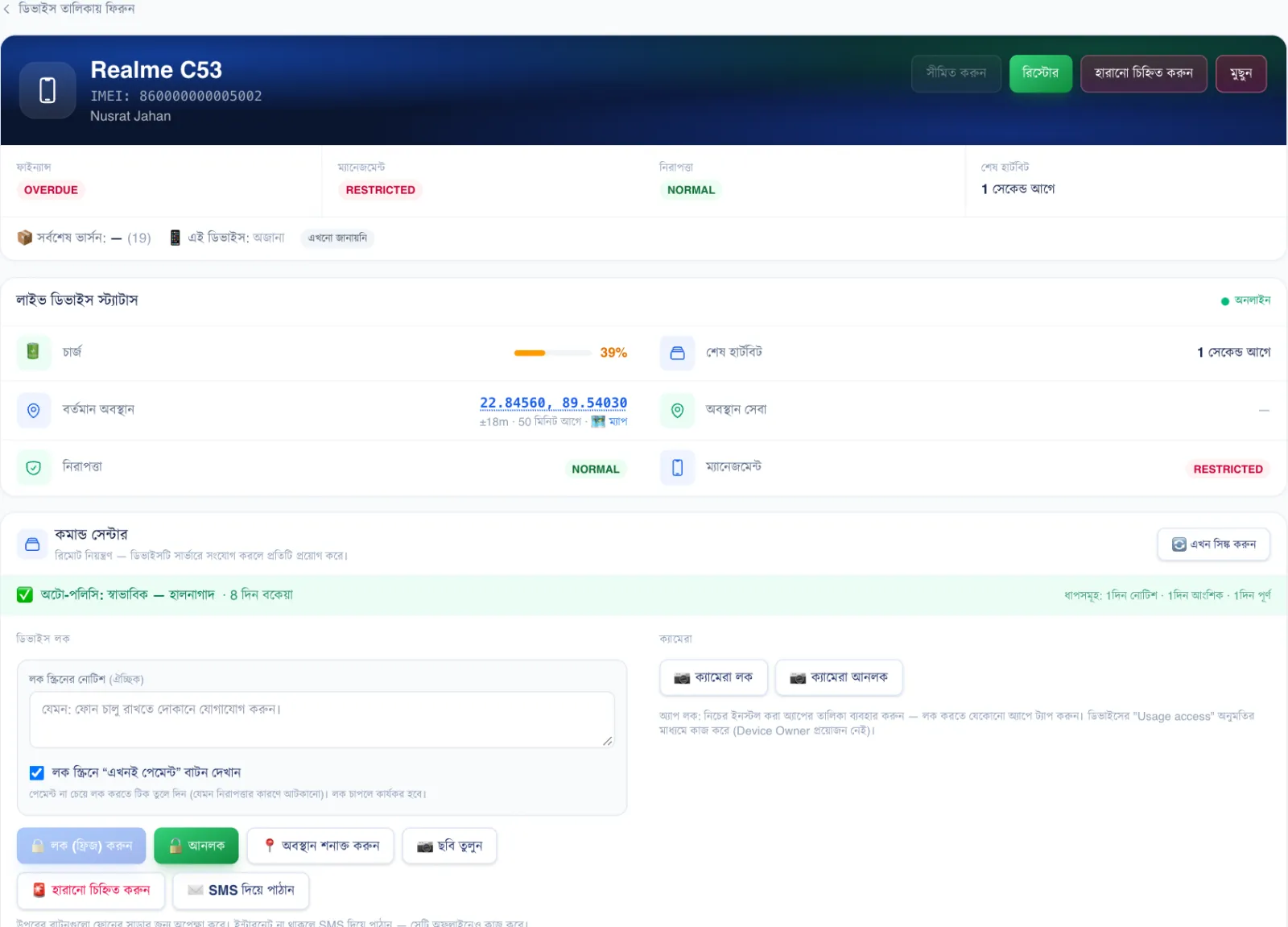
- 1RESTRICTED means the phone is locked right now.
- 2Restore. Tap this once the installment is paid — the phone goes back to normal.
💡 Good to know
- Send the lock even if the phone is offline — it locks as soon as it gets internet. If it's urgent, use Send by SMS.
- To lock automatically when an installment date passes, see Lock Rules and the installment settings.