8📄
Installment contracts
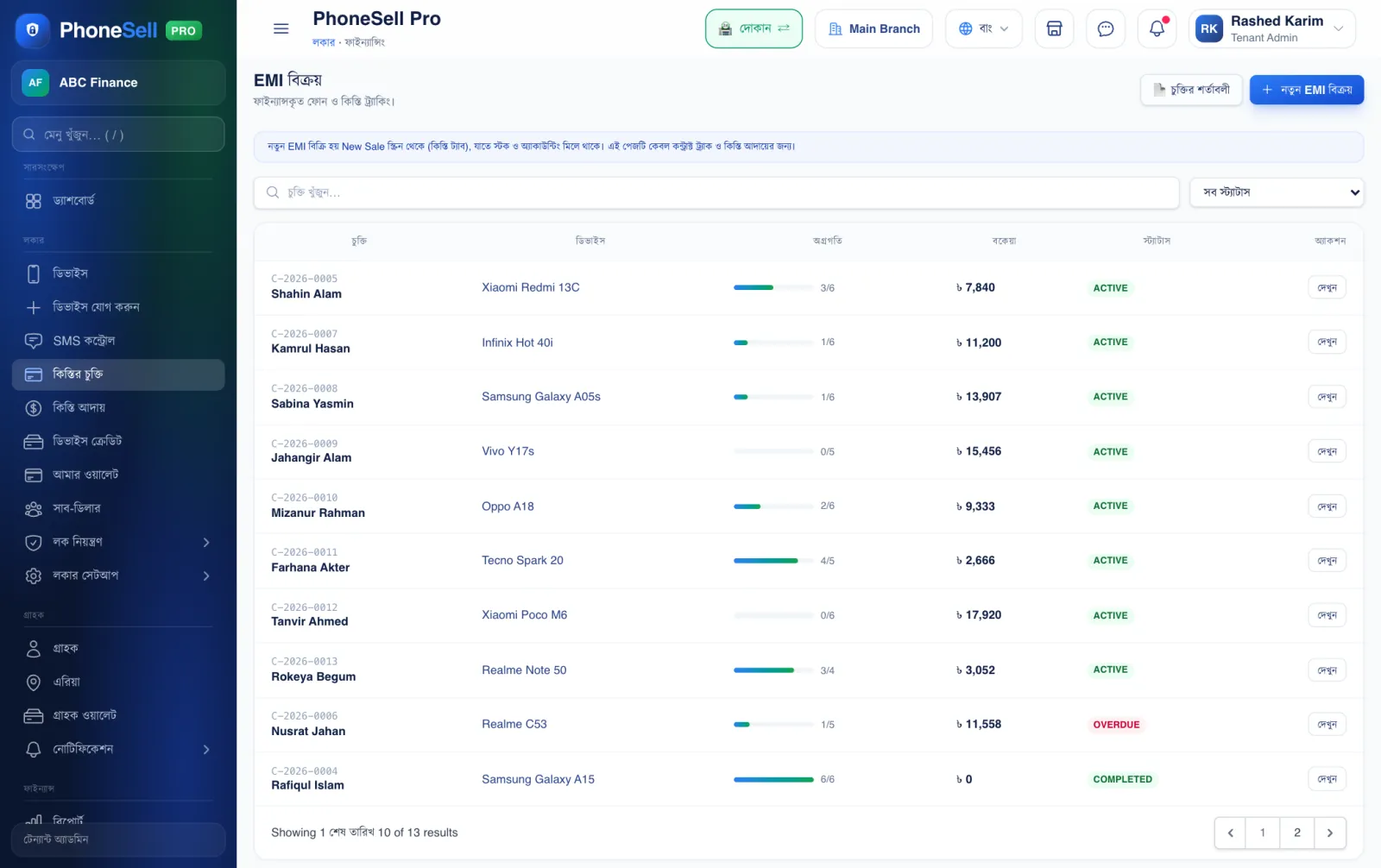
Each installment phone has a contract — price, down payment, number of installments and the date of each installment. This page shows all contracts and how far along each one is.
📍 Where to find it: Left menu: Locker → EMI Contracts.
📷 Screenshots show the panel in Bangla — switch the panel to English and the same buttons appear in English.
 12345
12345🔍 Tap the picture to enlarge
- 1Search contracts. By contract number or customer name.
- 2Status. Show only running, only overdue, or finished contracts.
- 3Progress. How many installments have been paid (for example 3/6).
- 4Due. How much money is still owed on this contract.
- 5View. Opens the contract's full page.
 12345
12345🔍 Tap the picture to enlarge
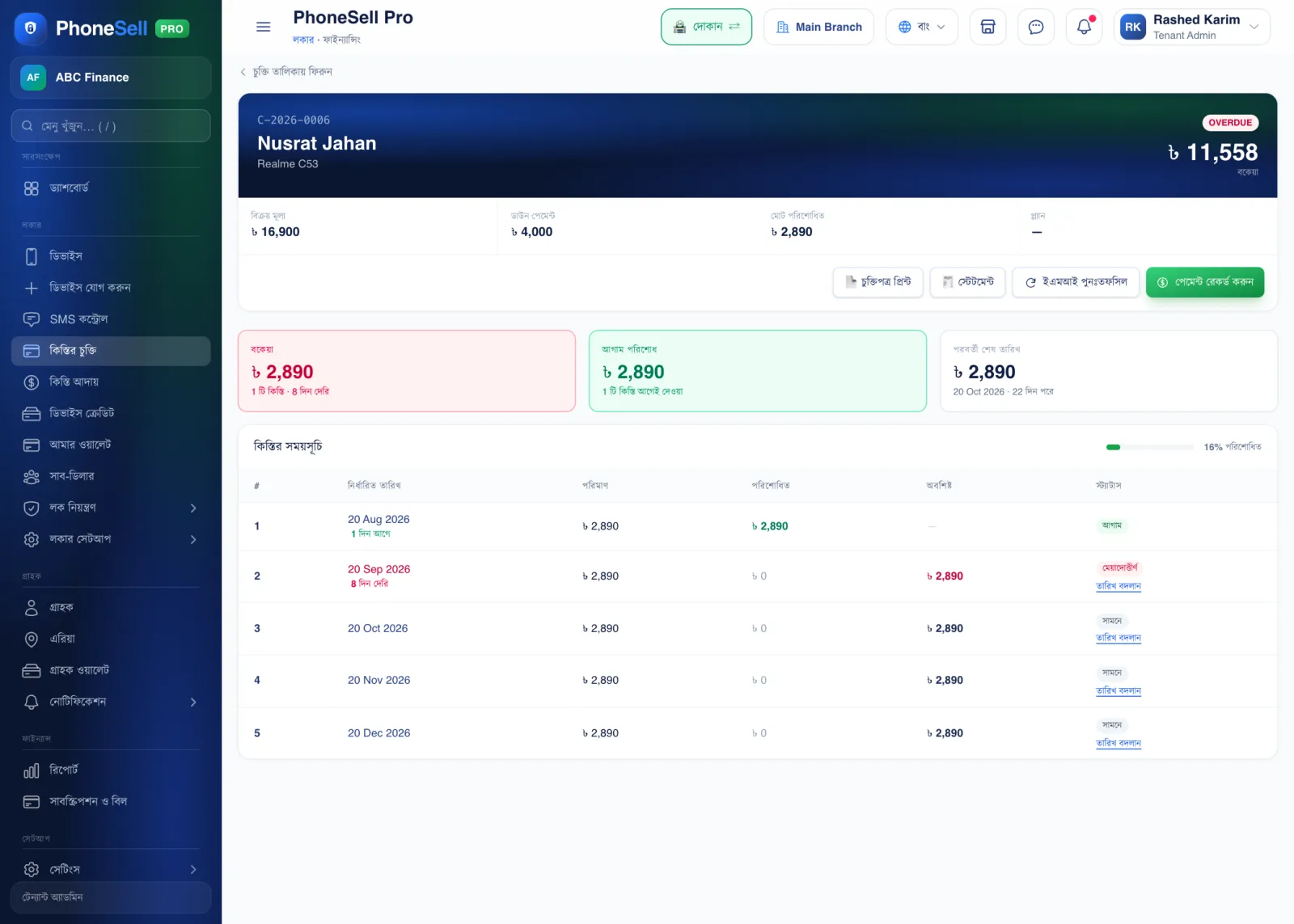
- 1Print agreement. The agreement for the customer to sign. Statement next to it shows every transaction.
- 2Reschedule EMI. If the customer runs into trouble, set new dates for the remaining installments.
- 3Record Payment. When you take an installment payment, record it here (next chapter).
- 4Due. How many installments are left and how many days late.
- 5Installment schedule. The date, amount and status of every installment — paid, overdue or upcoming.
💡 Good to know
- To set your shop name and terms on the agreement your way, see Locker Setup → Agreement Template.