5🔐
Enroll the phone — an uninstall-proof lock
After adding a phone to the Locker, you need to enroll it. Enrolling means installing the PhoneSell app on the phone in a way that the customer can't remove the app or reset the phone to break the lock.
You only do this once, in the shop, before handing the phone to the customer.
📍 Where to find it: The phone's page right after you add it, and in the left menu: Locker Setup → App & Setup.
📷 Screenshots show the panel in Bangla — switch the panel to English and the same buttons appear in English.
📺 Watch the video
Step by step
- Factory reset the phone. Do not add any Google or phone-maker account.
- In the panel, open the phone's page and tap Enroll device.
- Connect the phone with a USB/OTG cable and run the Enroll app (on your own phone) or the laptop tool — wait until it says “Success”.
- Open the PhoneSell app on the customer's phone and scan the panel's App Login QR.
- Within a few seconds the panel shows the phone as ENROLLED and Online. Now hand the phone to the customer.
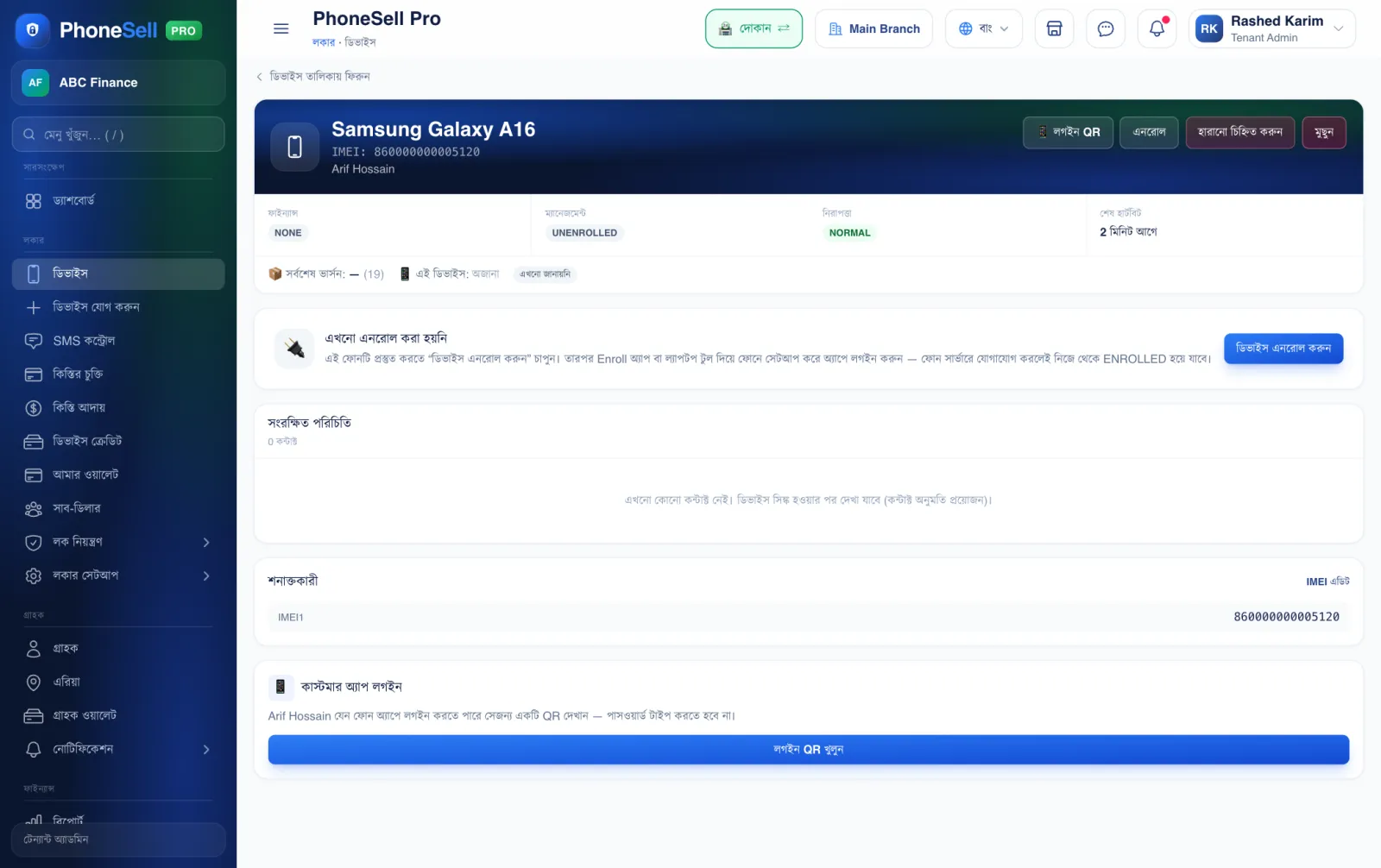 12
12🔍 Tap the picture to enlarge
- 1UNENROLLED means the phone hasn't been enrolled yet — the lock won't work yet.
- 2Enroll device. Tap to get the phone ready for enrolling; the next steps then appear below.
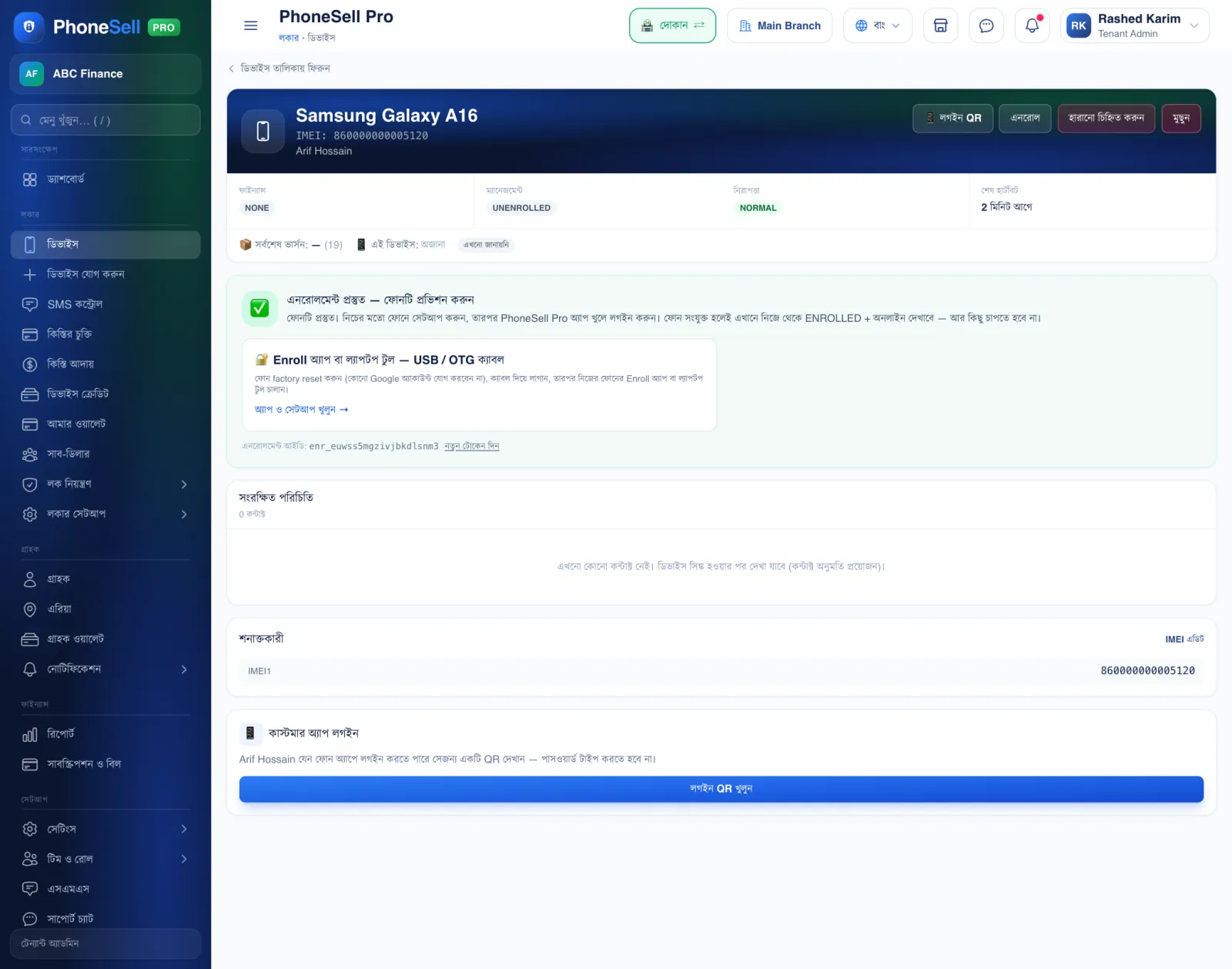 123
123🔍 Tap the picture to enlarge
- 1Enrollment ready. The phone is now waiting to be enrolled.
- 2Open App & Setup. Download the Enroll app or the laptop tool from here and set up the phone (picture below).
- 3Customer App Login. Tap Open login QR and a QR code appears. After setup, open the PhoneSell app on the customer's phone and scan this QR — no number or password to type.
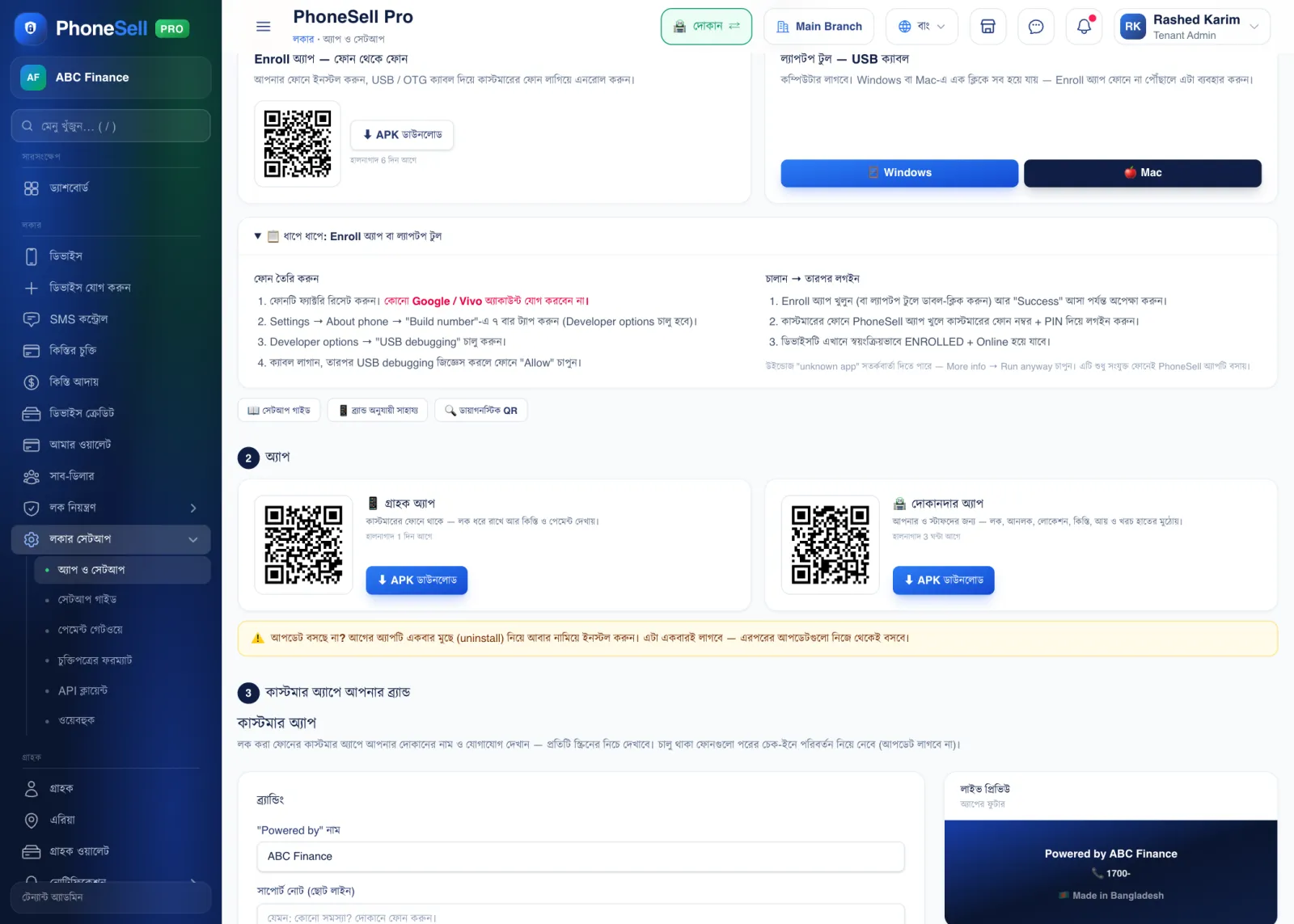 123
123🔍 Tap the picture to enlarge
- 1Enroll app — no computer needed. Install the app on your own phone, connect the customer's phone with an OTG cable and tap Enroll.
- 2Laptop tool. Runs on Windows or Mac — everything is done in one click. Use it if the Enroll app doesn't work on a particular phone.
- 3Step by step. Every step is written here, from preparing the phone (Developer options, USB debugging) to the end.
💡 Good to know
- After enrolling, app updates reach the phone by themselves — you only do this once per phone.
- Which brand hides which switch (Xiaomi, Vivo, Oppo…) is on the App & Setup → Help by phone brand page.
⚠️ Careful
- If there's any Google account on the phone, enrolling won't work. Factory reset it first and finish setup without adding an account.
- If Windows shows an “unknown app” warning, tap More info → Run anyway — the tool only installs the PhoneSell app on the phone.