2📊
Locker dashboard — everything at a glance
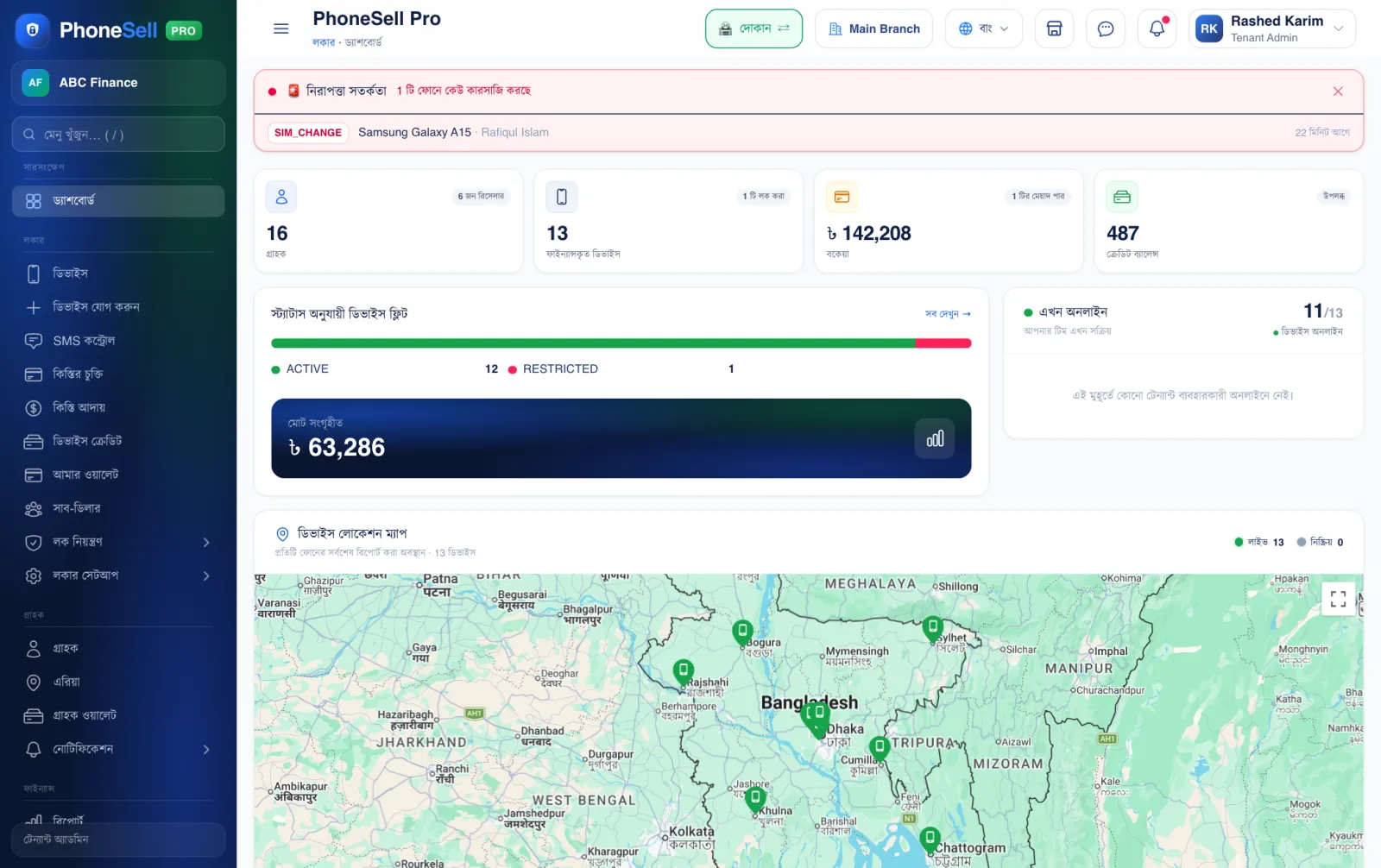
The dashboard is the first page of the Locker. A quick look at the start of the day tells you which phones need attention.
📍 Where to find it: This is the first page you see when you enter Locker Manage. In the left menu: Dashboard.
📷 Screenshots show the panel in Bangla — switch the panel to English and the same buttons appear in English.
 12345
12345🔍 Tap the picture to enlarge
- 1Total customers. All customers who have bought a phone from you on installments.
- 2Installment phones. How many phones are currently running on installments, and how many of them are locked.
- 3Due. The total money all customers owe you, and how many are past their installment date.
- 4Device Credits. You need credits to add a new phone to the Locker. This shows how many you have left.
- 5Phone status. How many phones are active, how many are locked and how many have been released — shown in colors.
💡 Good to know
- Scroll down to find the live map of all phones — where each phone is right now.